Does Your Safety App Actually Work? A Practical Guide to Testing It Before You Need It
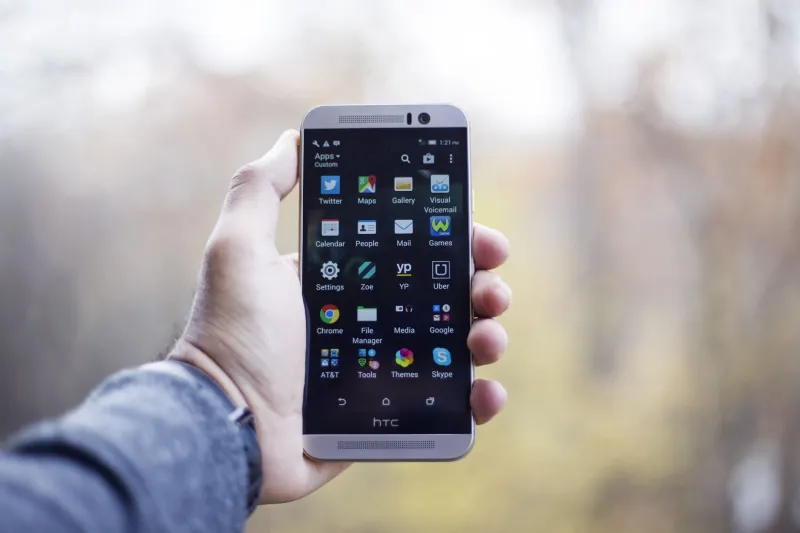
Consider a scenario that plays out with uncomfortable regularity: someone in a difficult situation reaches for their safety app, triggers an emergency feature, and waits for a response that does not come. Not because the feature was poorly designed, but because a setting had drifted, a permission had lapsed, a contact's phone number had changed, or a background process had been quietly terminated by an operating system update months earlier.
The safety app on your phone right now may not work the way you believe it does. The only way to know for certain is to test it—deliberately, systematically, and before the moment when it actually matters.
Why Safety Apps Degrade Without Warning
Mobile applications exist in an environment of constant change. Operating system updates alter how apps manage background processes and location access. Permission settings reset or tighten. Contacts change their phone numbers, switch carriers, or modify their own notification preferences. Battery optimization features—increasingly aggressive on both iOS and Android—can restrict background activity in ways that silently disable the features you depend on most.
Additionally, the information you entered when you first installed the app may no longer be accurate. Emergency contacts you listed two years ago may have moved, changed numbers, or be unaware that they are still designated as your primary point of contact in a crisis. The home address embedded in your profile may reflect a previous residence. The check-in schedule you configured may no longer match your actual routine.
None of these degradations announce themselves. Your app will continue to appear functional on its home screen regardless of whether its critical features remain operational. The only way to identify these failure points is through deliberate testing.
Step One: Verify Location Accuracy
Location services are the foundation of most safety app functionality. Before testing anything else, confirm that your application has the permissions it requires and that those permissions are configured correctly.
On both iPhone and Android devices, navigate to your privacy or location settings and confirm that your safety app is set to access location data at all times—not only while in use. Many users set this permission to the more restrictive option during initial setup and forget to adjust it, inadvertently disabling the background location sharing that emergency features depend on.
Next, conduct a practical accuracy test. Open your app's location-sharing feature and compare the displayed coordinates or map position against your actual location using a separate mapping application. Perform this test in multiple environments: inside your home, in an underground parking structure, in a densely built urban area, and in a rural or suburban setting with open sky. Note any discrepancies, and pay particular attention to how long the app takes to acquire an accurate position after being opened from a closed state.
If your app reports a location that differs from your actual position by more than a few hundred feet in normal conditions, that discrepancy warrants investigation before you rely on the feature in an emergency.
Step Two: Test Emergency Contact Responsiveness
Designating emergency contacts is meaningless if those contacts cannot receive or act on the alerts your app sends. Testing this link is essential and should be repeated at regular intervals.
With the knowledge and cooperation of your designated contacts, conduct a test alert. Observe not only whether the alert is received, but how long delivery takes, what information the contact receives, and whether they can clearly understand what action is expected of them. Many safety app alerts are designed to be self-explanatory, but real-world testing frequently reveals that contacts are confused about what the notification means or what they are supposed to do in response.
Confirm that each contact's phone number in your app profile is current. Verify that their notification settings will allow your app's alerts to reach them—including during periods when their phone is set to Do Not Disturb. Establish, in plain conversation, what you expect them to do if they receive an emergency alert from you and cannot immediately reach you by phone.
Repeat this process at minimum every six months, and whenever a designated contact changes devices, carriers, or phone numbers.
Step Three: Audit Your App Permissions and Settings
Set aside twenty minutes to review every configurable setting within your safety application. This review should cover the following areas.
Background app refresh. Confirm that your safety app is permitted to run in the background on your device. This setting is frequently disabled by battery optimization features following operating system updates.
Notification permissions. Verify that your app is authorized to deliver notifications, including time-sensitive or critical alerts that can bypass standard Do Not Disturb settings.
Microphone and camera access. If your app includes features that use audio or video—such as silent recording during an emergency—confirm that these permissions remain active.
Account credentials. Log out of your app and log back in to confirm that your credentials remain valid. Expired sessions can silently prevent emergency features from functioning.
Profile information. Review every field in your user profile: home address, workplace, vehicle information, medical notes, and emergency contacts. Update anything that is no longer accurate.
Step Four: Simulate an Emergency Workflow
The most revealing test you can conduct is a full simulation of your emergency workflow from beginning to end. Choose a low-stakes moment and walk through every step you would take in a genuine crisis: locating the app on your device, opening it under mild simulated stress, navigating to the emergency feature, and initiating the alert sequence.
Time yourself. Note any friction points—steps that require more taps than expected, features that are difficult to locate under pressure, confirmation dialogs that might cause hesitation. Emergency situations are not the appropriate moment to discover that a feature requires three steps you had not memorized.
If your app includes a panic button or SOS feature, confirm that you know exactly where it is and how to activate it without looking at the screen.
Building a Maintenance Schedule
Safety app maintenance should be treated as a recurring personal safety habit rather than a one-time setup task. A practical maintenance schedule for most users includes a brief monthly check of permissions and contact information, a full feature test every three months, and a comprehensive audit of all settings and profile data twice per year.
Set calendar reminders to prompt these reviews. Link them to existing habits—the first day of each month, a seasonal date, or a personally meaningful anniversary—to make them easier to maintain consistently.
Warning Signs That Something Has Gone Wrong
Between scheduled reviews, certain indicators suggest that your safety app may have degraded in ways that require immediate attention. These include unexpected battery drain associated with the application, location data that appears stale or inaccurate when you open the app, failure to receive your own test notifications, and any prompt from your device suggesting that the app's permissions have changed.
An app that behaves differently than it did during your last review warrants investigation before you rely on it again.
The value of a safety application is realized entirely in the moment you need it. Everything you do before that moment—every test, every review, every conversation with an emergency contact—is an investment in the reliability of a tool that exists specifically for situations where reliability is non-negotiable.